


Power BI Dark Mode
- Oct 1, 2024
- 1 min read
Updated: Sep 4, 2025
Now, you can personalize your data visualization experience to match your preferences and working environment. Power BI announces a new feature in Power BI Desktop that allows you to choose a variety of themes, including the Dark Model. Dark mode provides a sleek, modern look that reduces eye strain and enhances focus.
Available Themes:
Default – The classic white theme that is currently standard for the desktop application.
Dark – The newly introduced dark theme that transforms your desktop application with a darker interface.
Light – A fresh white theme with updated stylings for a more modern look.
Use system setting – Adapt the theme based on your Windows system settings.
To Select a theme:
Go to Files, then select Options and Settings, and then click on Options.
In the Options menu, navigate to Global, and then to Report Settings.
Under the Personalization section, you can select any of the above mentioned themes.
Click “OK” and your selected theme will be applied

New Dark vs new Light mode
Home in Power BI Desktop:
Dark mode

Light mode

Report view:
Dark mode

Light mode

Table view:
Dark mode

Light mode

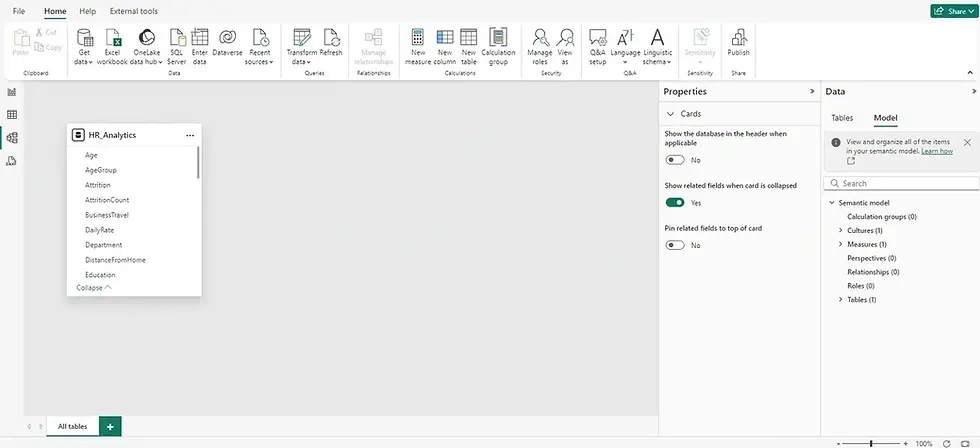
Model view:
Dark mode

Light mode
Dax query view:
Dark mode

Light mode

Mobile Layout:
Dark mode

Light mode

For expert data solutions tailored to your business, contact us at Numlytics. Transform your data into actionable insights!


Comments