


Incremental Refresh in Power BI
- Oct 8, 2024
- 3 min read
Updated: Sep 4, 2025
Incremental refresh is a feature in Power BI that allows you to update and refresh data in your reports and dashboards by importing only new or changed data since the last refresh. Rather than refreshing the entire dataset, incremental refresh focuses on selectively updating the relevant portions of the data, resulting in significant performance improvements and resource efficiency.
Difference between Full Refresh and Incremental Refresh.
Full refresh means fetching the entire dataset each time and wiping out the previous data, whereas Incremental Refresh is the process of loading only part of the data that might change and adding it to the previous dataset, which is not changing anymore.
For data that changes frequently or is regularly updated (like when tables are truncated and reloaded), a full refresh is best. Run it daily or weekly to capture all changes, including deleted rows.
However, if your data doesn’t change often and you’re only adding new rows, an incremental refresh is faster and more efficient. It can be run daily to keep reports up to date.
How to apply Incremental Refresh?
Configuring incremental refresh includes creating RangeStart and RangeEnd parameters, applying filters, and defining an incremental refresh policy. After publishing to the Power BI service, you perform an initial refresh operation on the dataset. The initial refresh operation and subsequent refresh operations apply the incremental refresh policy you defined.
Step 1 : In Power BI Desktop, click Transform Data to open Power Query Editor.
Step 2 : Click Manage Parameters > New Parameter.
Step 3: In Manage Parameters > Name, type RangeStart (case sensitive), then in Type, select Date/Time, and then in Current Value, enter a start date/time value.

Step 4 : Create a second parameter named RangeEnd. In Type, select Date/Time, and then in Current Value, enter an end date/time value.

Step 5 : Apply a filter based on conditions in the RangeStart and RangeEnd parameters.
In Power Query Editor, select the date column you want to filter on, and then click the filter icon > Date/Time Filters > Custom Filter.
In Filter Rows, to specify the first condition, select ‘is after or is after or equal to’, then select Parameter, and then select RangeStart. To specify the second condition, select ‘is before or equal to’, or ‘is before’, then select Parameter, and then select RangeEnd.

Click Ok to close.
Step 6 : In Power Query Editor, click Close & Apply.
Define Incremental Refresh policy.
Step 1 : In Data view > Fields > open the context menu for the table, and then click Incremental refresh.

Step 2 : In Incremental refresh and real-time data > Select table, verify, or select the table.
Step 3 : In Set import and refresh ranges > Incrementally refresh this table click the slider to On. In the Archive data starting, specify the historical store period you want to include in the dataset. In Incrementally refresh data start, specify the refresh period. All rows with dates in this period will be refreshed in the dataset each time a manual or scheduled refresh operation is performed.
Step 4 : In Choose optional settings, select Get the latest data in real-time with Direct Query (Premium only) to include the latest data changes that occurred at the data source after the last refresh period.
Select Only refresh complete days to refresh only whole days. If the refresh operation detects a day is not complete, rows for that whole day are not refreshed.
Select Detect data changes to specify a date/time column used to identify and refresh only the days where the data has changed. A date/time column must exist, usually for auditing purposes, at the data source.
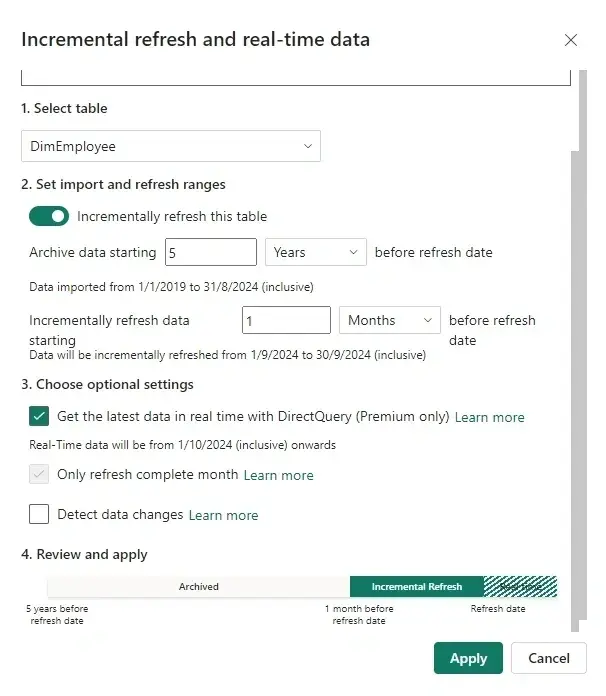
Step 5 : Review your settings and then click Apply to complete the refresh policy.
Step 6 : Save and publish to the service.
Step 7 : In the service, refresh the dataset.
Conclusion
In conclusion, incremental refresh in Power BI is a powerful feature for optimizing large dataset refreshes. By breaking data into smaller partitions and using query folding, it reduces data transfer and processing time, improving performance and saving resources.
To make the most of this feature, choose the right partitioning column, streamline data loading, and set a suitable refresh schedule. Regular monitoring, testing, and leveraging Power BI Premium features can further enhance its benefits. With incremental refresh, users can enjoy faster updates, efficient resource use, and up-to-date reports.
For expert data solutions tailored to your business, contact us at Numlytics. Transform your data into actionable insights!
Sign up for blog updates!
Join my email list to receive updates and information.
Sign up


Comments